
Workout markers indicate the days you completed a workout, giving you a visual record of your consistency and progress over time.

Meet Your Trainer
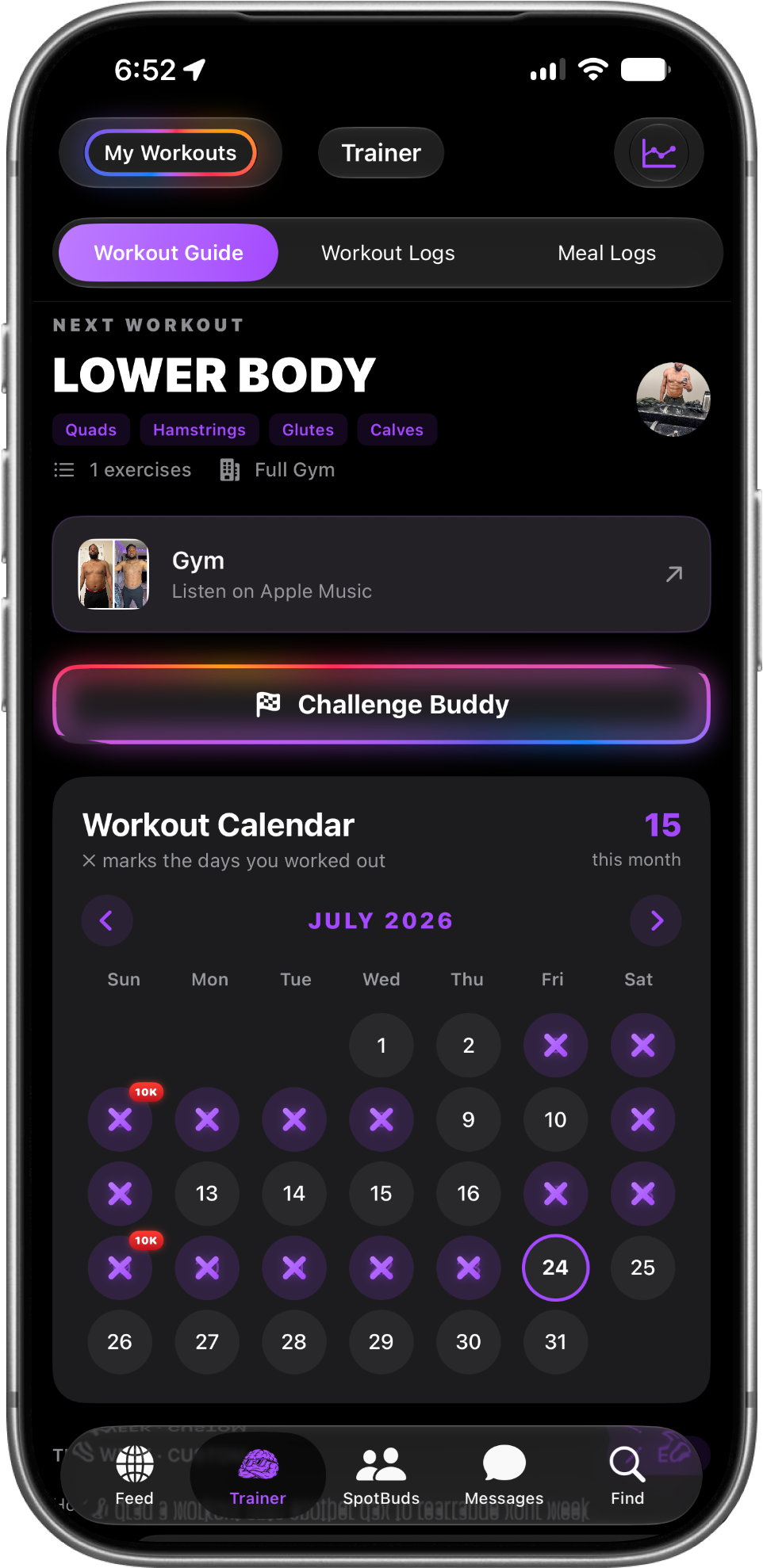
Everything workout-related lives in the Trainer tab.
Here's the tour
HOW TO GET STARTED

- The 3 sub-tabs up top:
- Workout Guide (what to train today),
- Workout Logs (every session you've done),
- and Meal Logs (everything you've eaten).
MY WORKOUTS
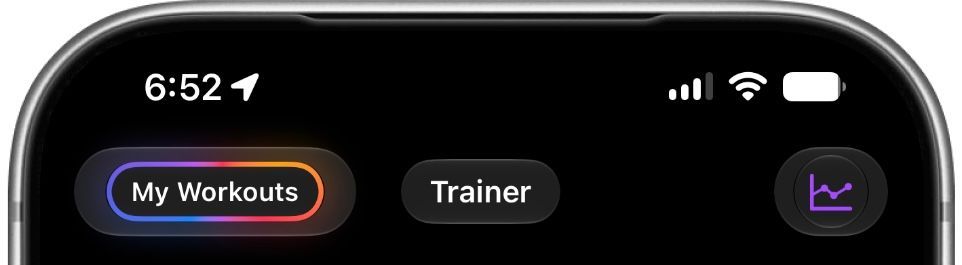
- My Workouts (glowing button)
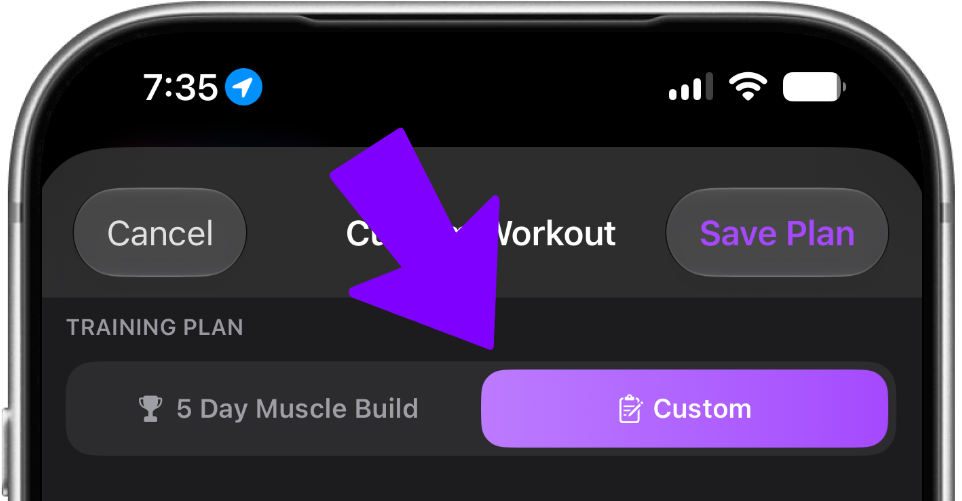
Select custom to build your own exercises!
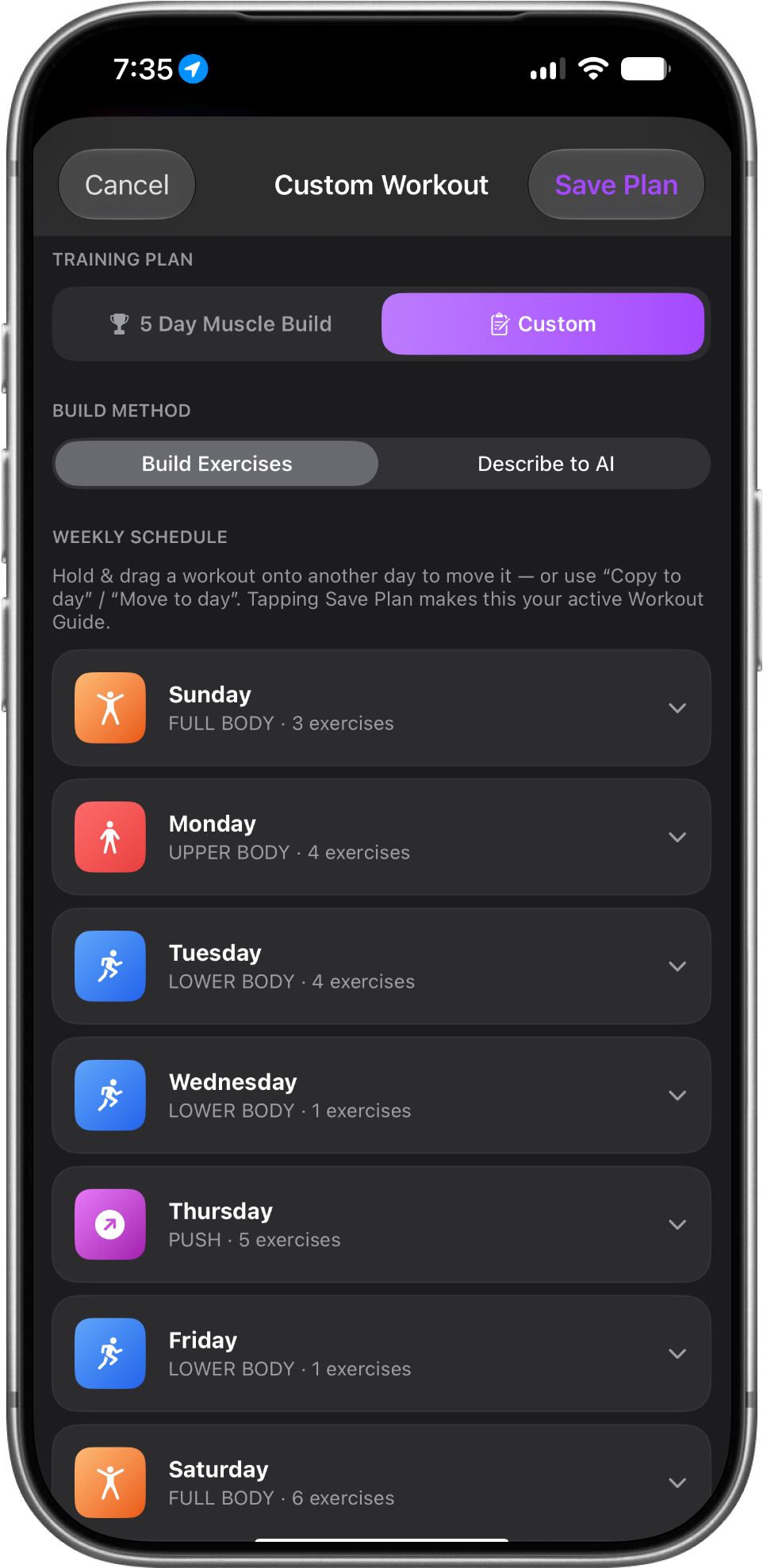
Create a personalized workout plan by selecting the days you want to train.
Add custom exercises to each workout day and build a routine tailored to your fitness goals.
WORKOUT GRAPHS
- 📈 Graphs (top-right): See your progress
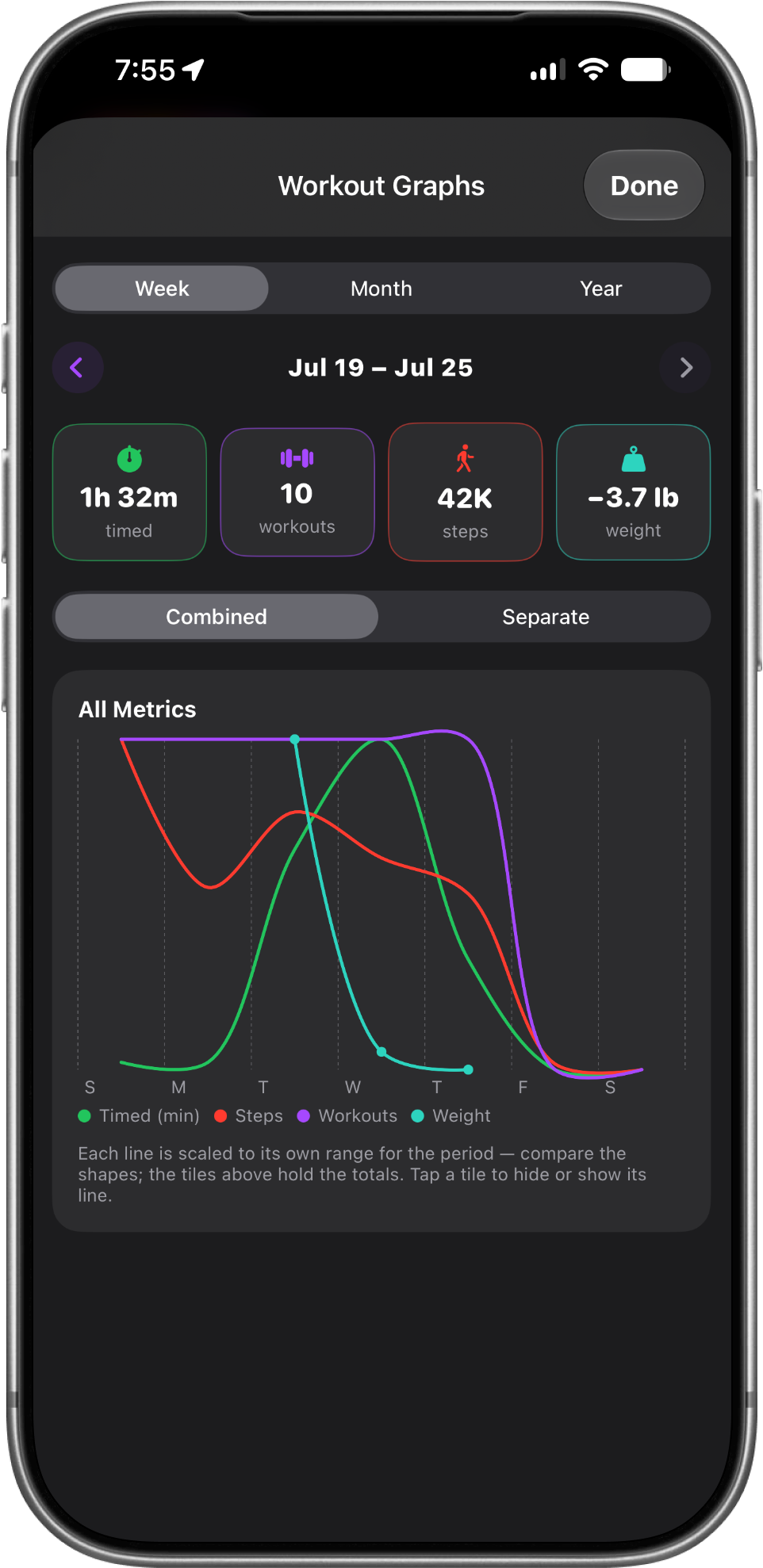
Workout minutes and sessions, by week, month, or year.
Workout Calendar
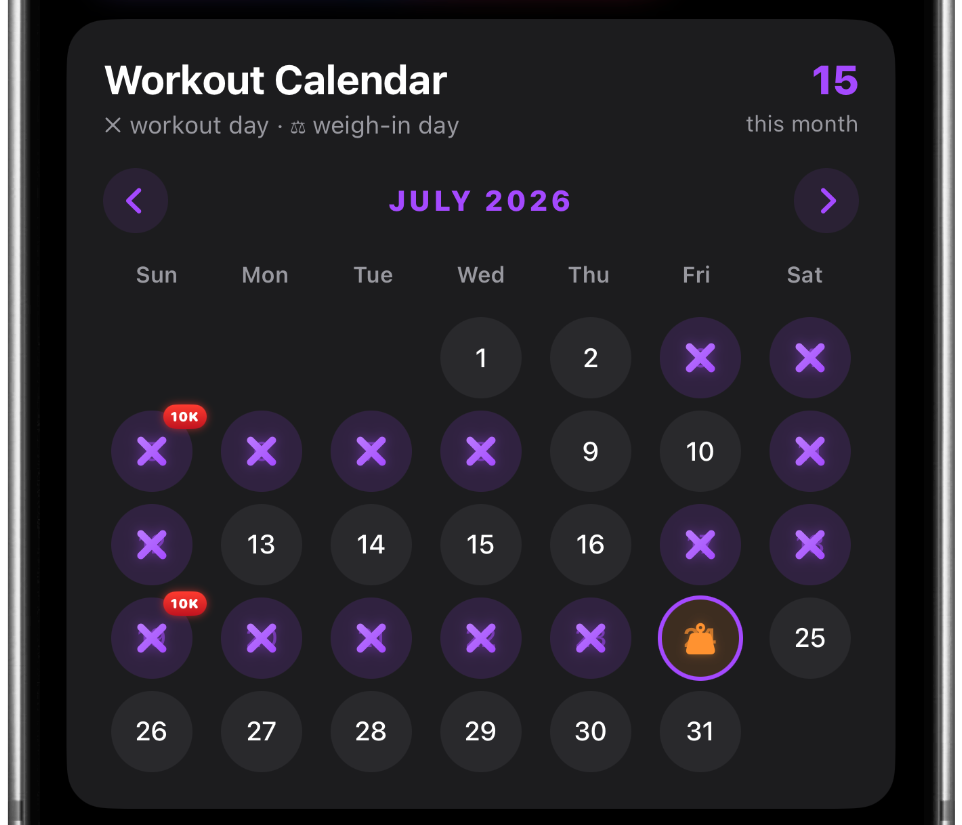
Your Workout Calendar showcases your fitness journey and the consistency behind your progress. Track every workout you've completed over time, and choose to display your calendar on your public profile. Other users can view your completed workout days, explore your routines, and save your workouts to train with later. *
*Every 5 workouts and every 5,000 steps levels you up. Keep stacking them


Track your weight over time with Weight Markers. Every weigh-in is saved on your calendar, giving you a clear view of your progress throughout your fitness journey.

Earn a 10K Steps Badge each day you reach 10,000 steps, celebrating your consistency and daily activity.
Workout Guide
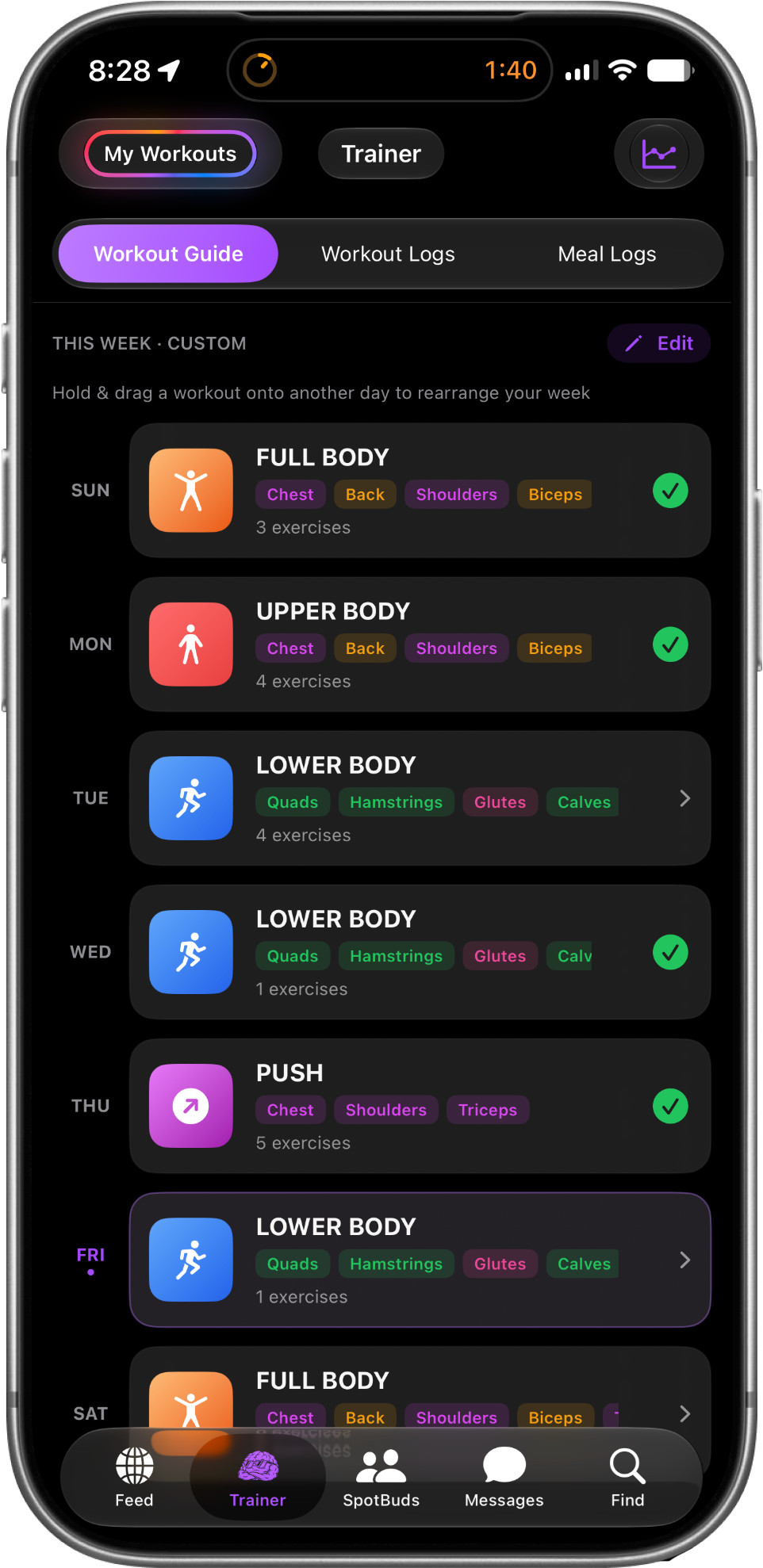
SCROLL DOWN!
You'll see the Exercise list,
tap one to start your exercise
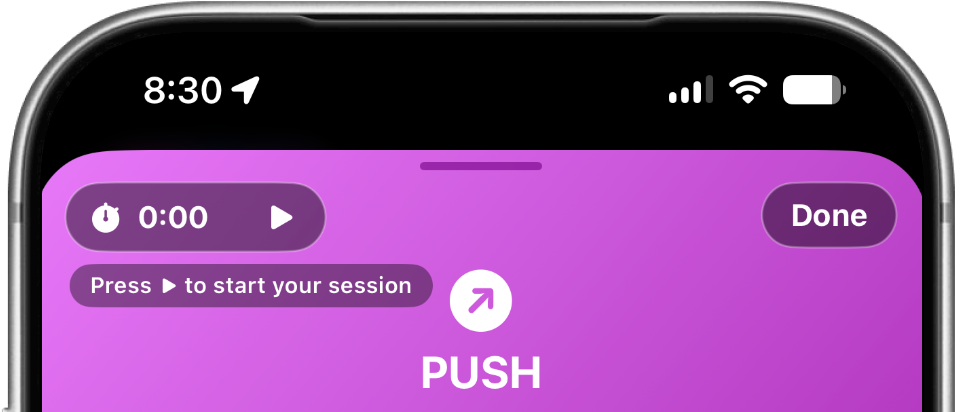
- ▶️ Play button:
Tap it to start your workout timer
Always the first step when you log a session.
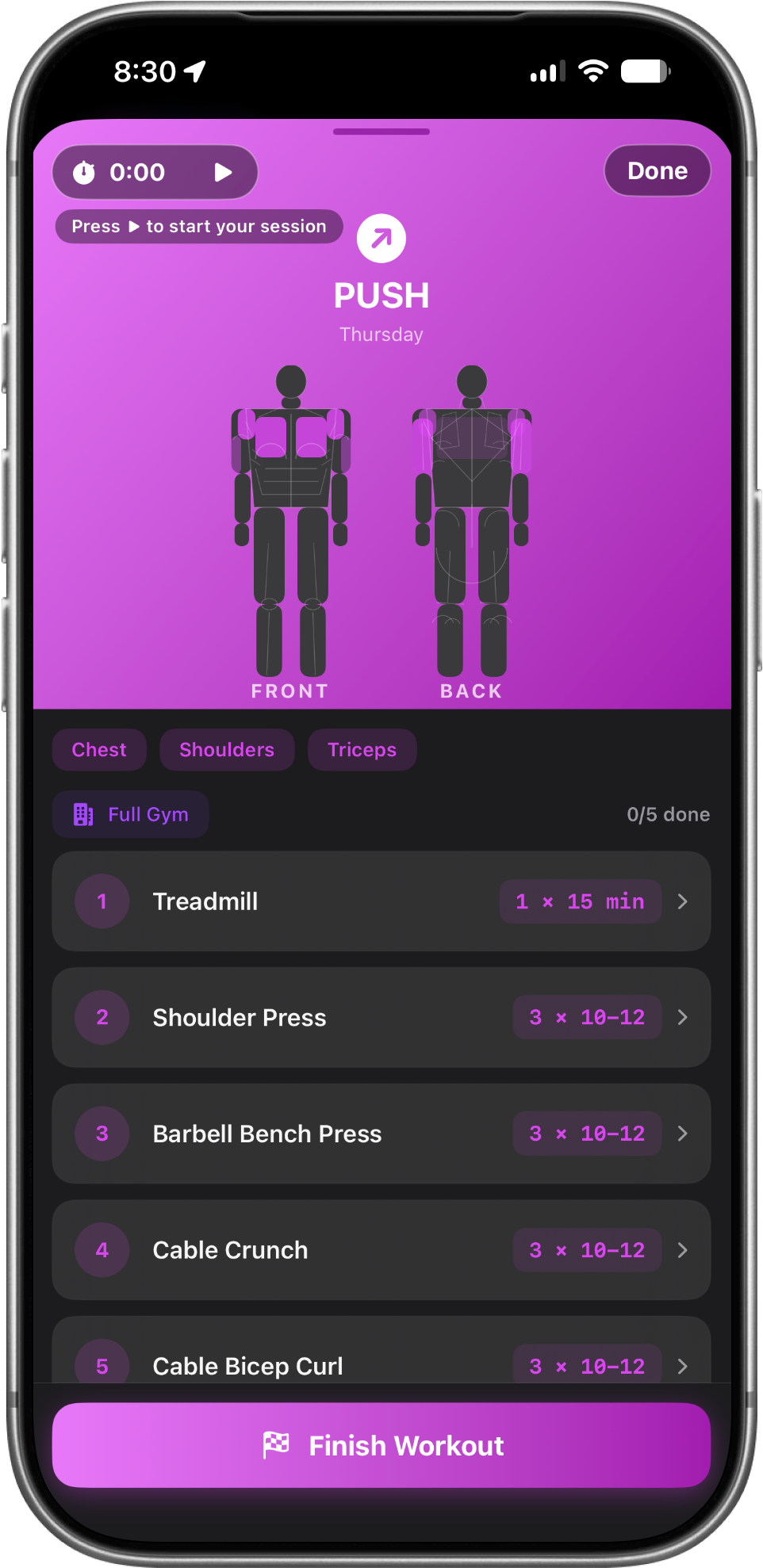
Tap on an exercise that you may have set up to start logging your workouts
YOUR PLAYLIST
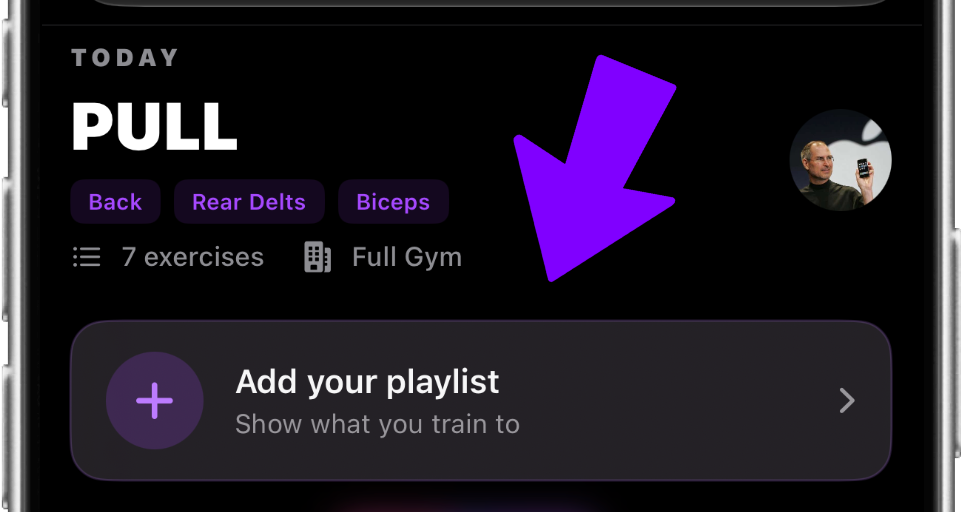
- 🎧 Playlist button:
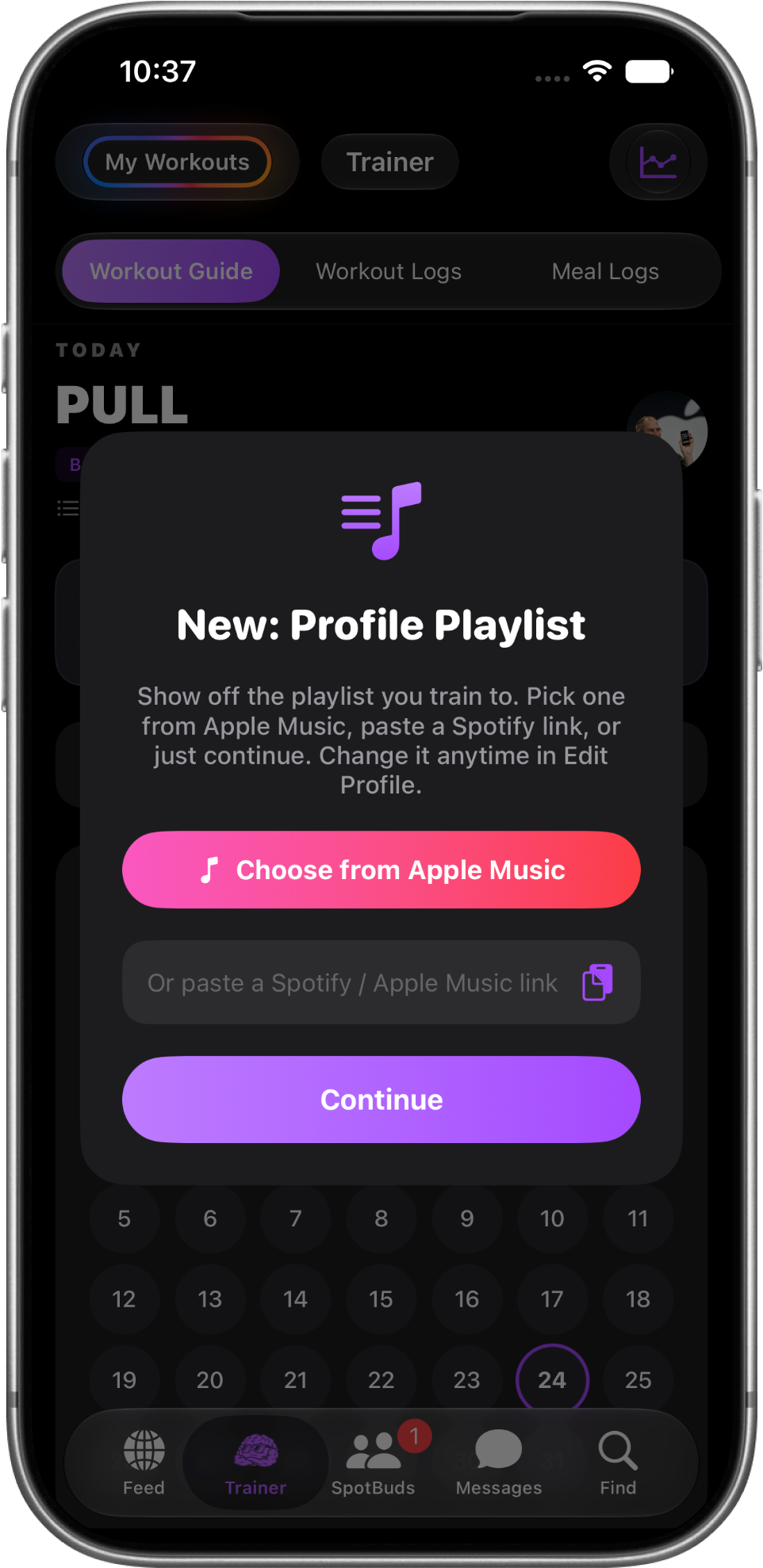
Share the playlists that fuel your workouts by connecting your Apple Music or Spotify account. Explore the music other users train to, discover new songs, and save your favorites directly to your own playlist.
If your unable to share your apple music playlist then try this.
- Open the Apple Music app
- Tap to your account pic icon
- Select your user account for the account the playlist is in
- Select edit
- Then select your playlist to make it sharable
- Then go back to the SpotBuds app, then trainer tab
- Select your playlist!
YOUR PUBLIC PROFILE
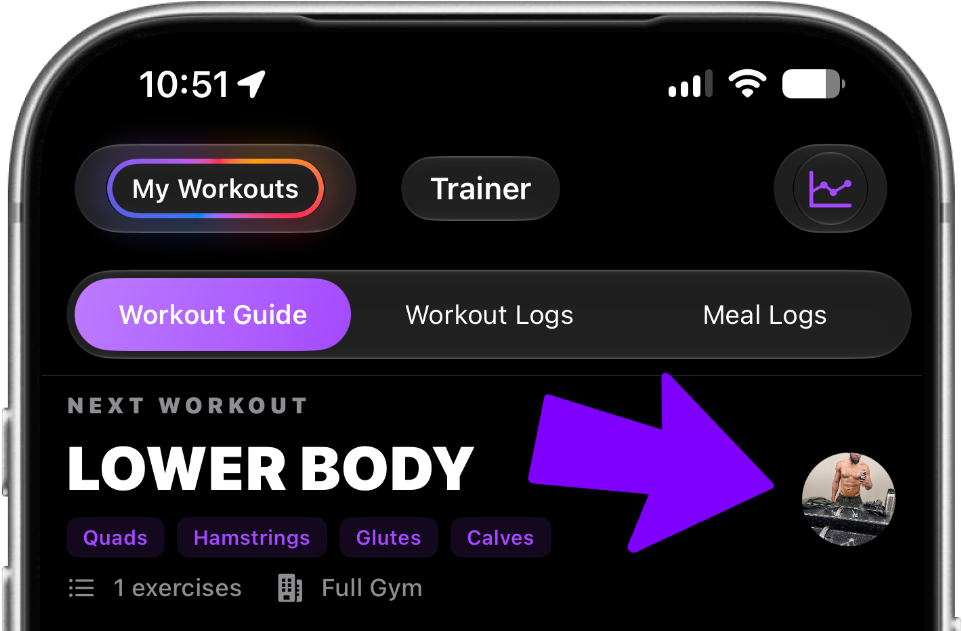
When you create a SpotBud account, you’ll receive a customizable public profile where other users can view the fitness information you choose to share, including your workout calendar, activity, and progress
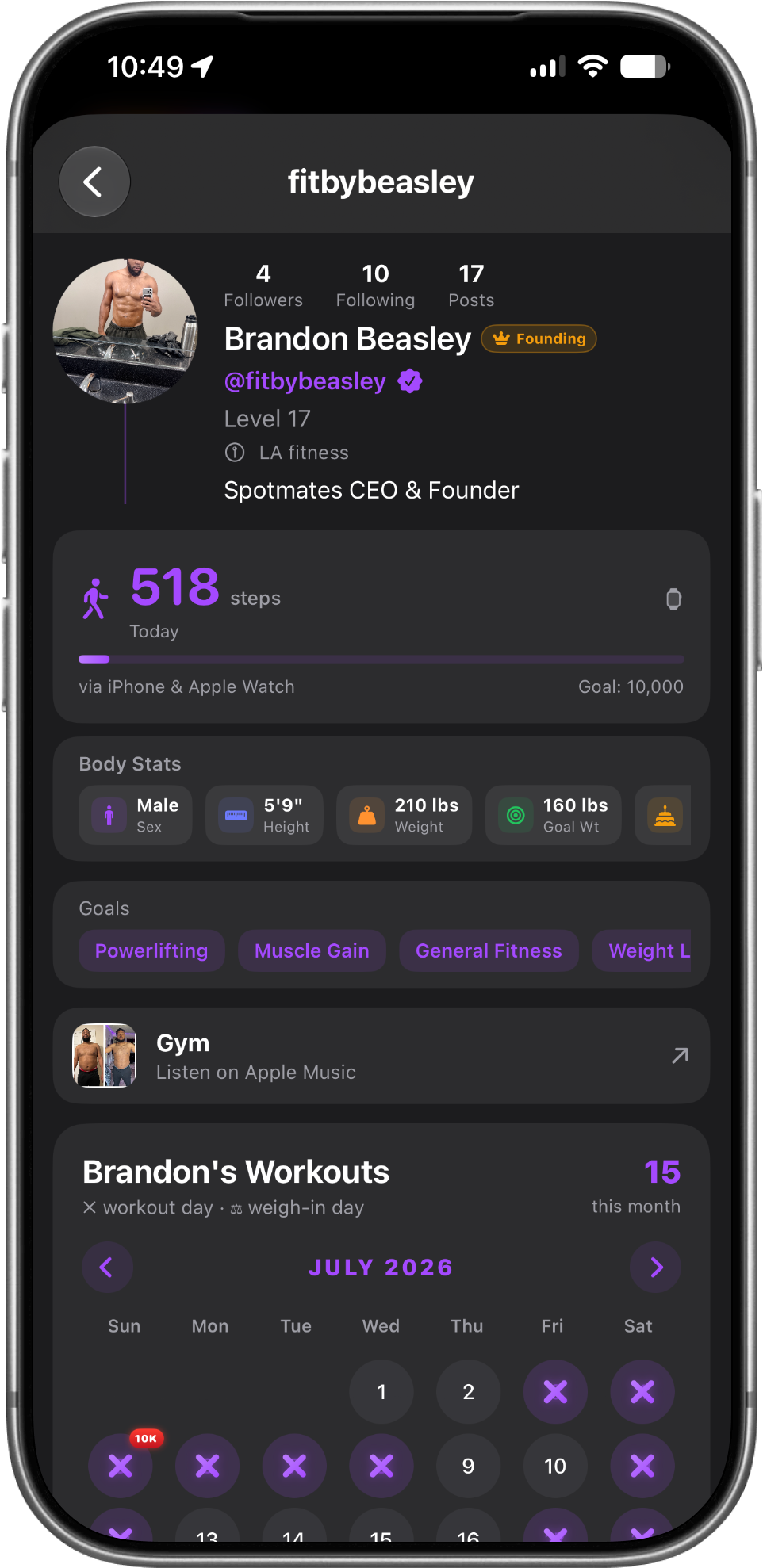
Tap to view your public profile, where you can showcase your username, bio, verified badges, SpotBud Level, daily steps, body stats, fitness goals, playlists, workout calendar, and more.
Workout Logs
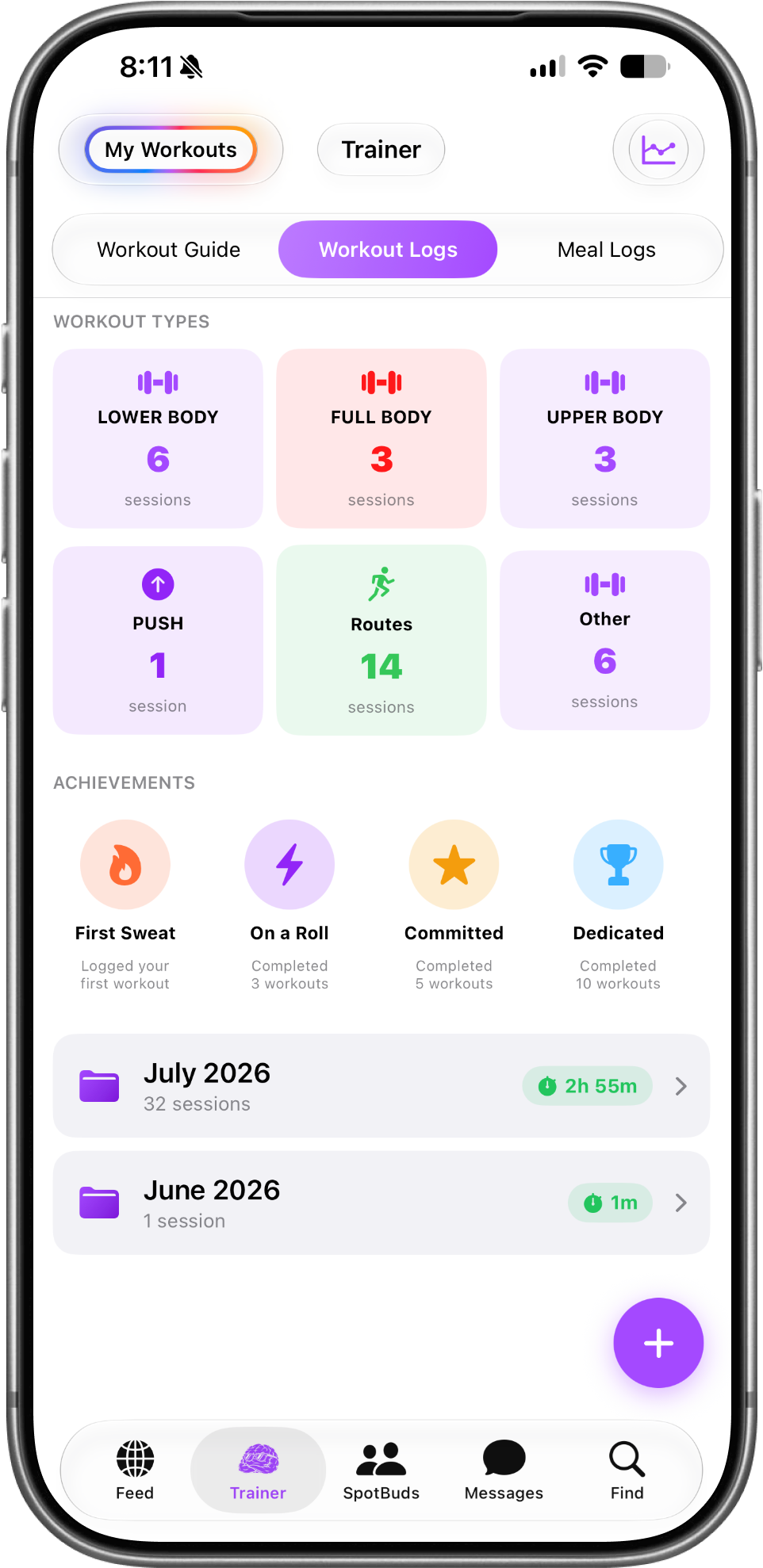
A quick-glance grid that tallies how many sessions of each kind of workout you've logged
Workout Types
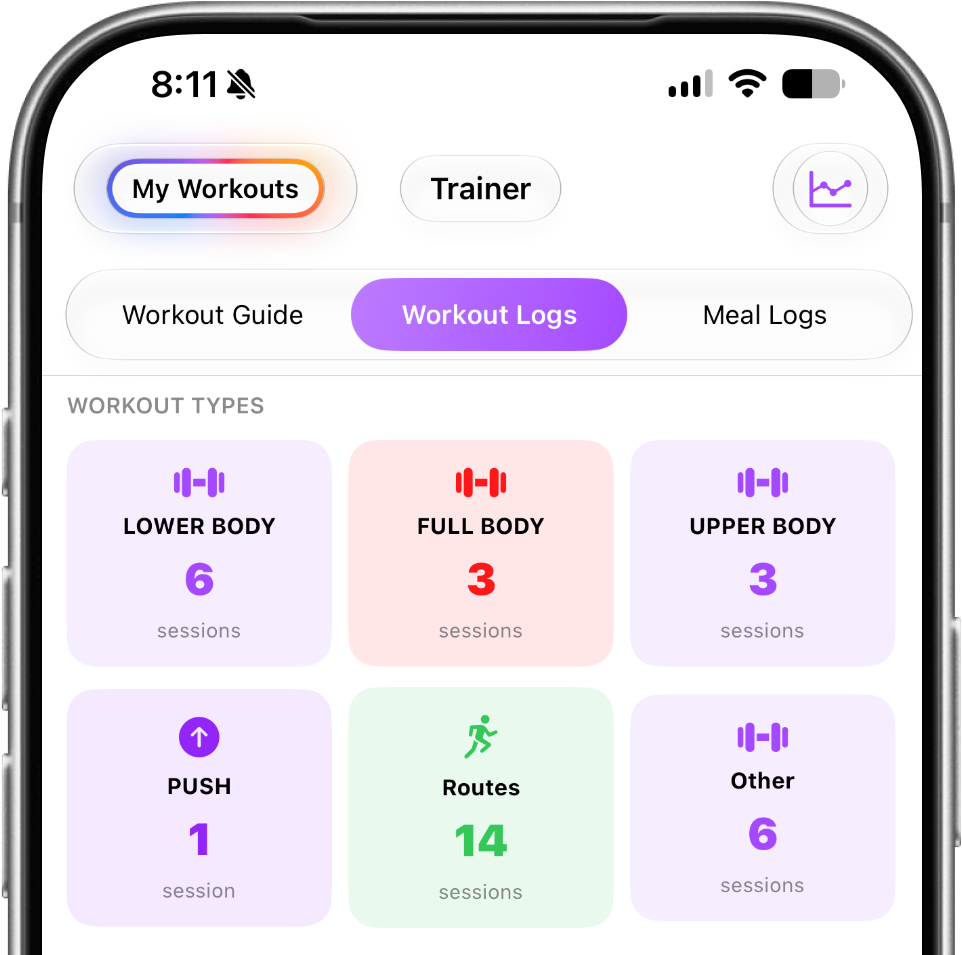
- Lower Body, Full Body, Upper Body, Push (and any other split you train) — each card shows your total session count for that type.
- Routes — your runs, walks, and timed cardio (treadmill sessions, outdoor routes) all counted here.
- Other — anything that doesn't fall into a named split.
It's an instant snapshot of your training balance you can see at a glance whether you're hitting every muscle group or leaning too hard on one.
Tap any card to dive into just those sessions.
Achievements
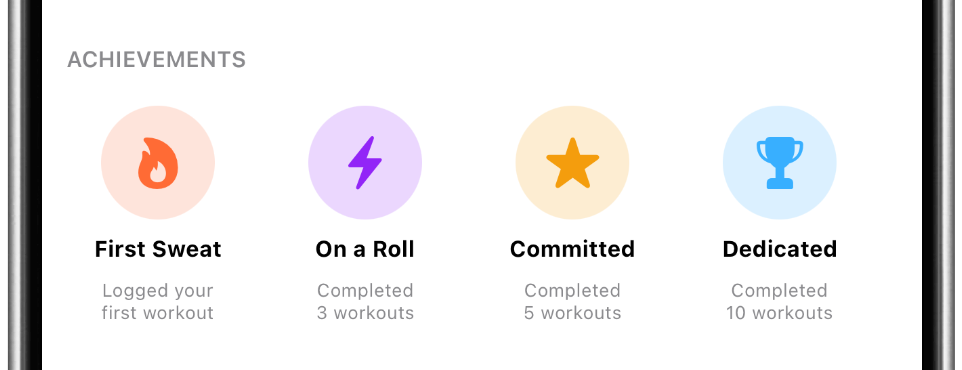
Milestone badges you earn automatically as you build the habit. They light up the moment you hit each one:
- First Sweat — logged your very first workout.
- On a Roll — completed 3 workouts.
- Committed — completed 5 workouts.
- Dedicated — completed 10 workouts.
- & more!
They're there to reward consistency and keep you motivated every logged session moves you toward the next badge.
Monthly History
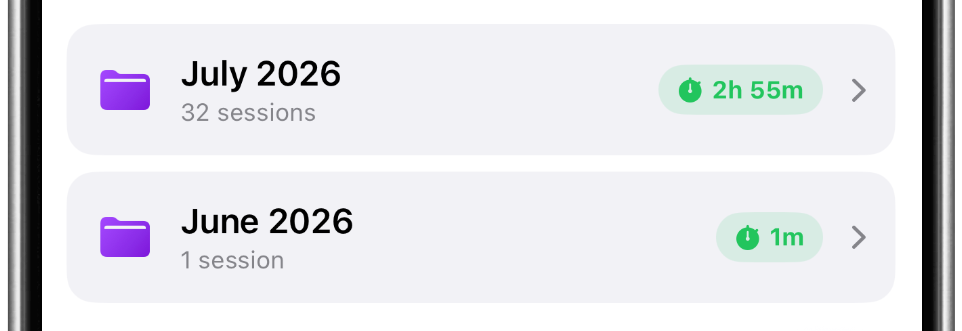
Below your achievements, your entire training log is grouped into monthly folders, newest first:
- Each folder shows the month, the number of sessions you logged, and a total active-time badge (for example, "July 2026 · 32 sessions · 2h 55m").
- Tap any month to open the full list of that month's workouts each with its exercises, sets, reps, duration, and (for runs) distance, calories, and steps. From there you can open a session to see the details or edit it.
-
This is your long-term progress record scroll back to see how far you've come, month over month.
The + Button
The purple + button in the corner lets you log a workout manually anytime!
Great for a session you did off-app or want to add after the fact.
(Timed and guided workouts you start from the Workout Guide land here automatically.)
Meal Logs
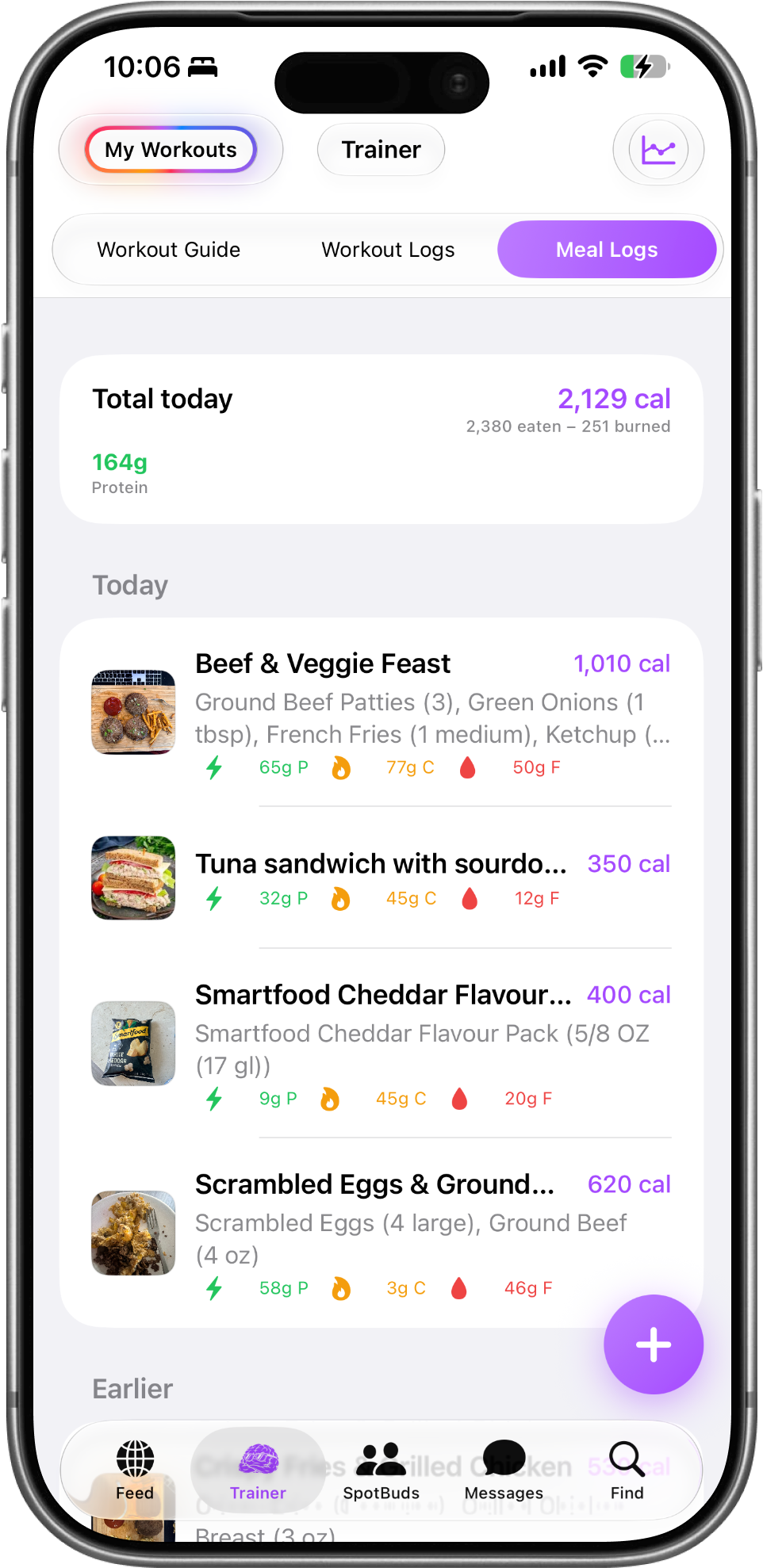
Open My Workouts → Meal Logs and the first thing you see is the Total today card
- Net calories — the big purple number
- "2,380 eaten − 251 burned" — your food minus the calories you actually burned. That burn number is live: it counts the calories from your steps and walking (straight from Apple Health) plus any gym sessions you logged, and it climbs on its own as you move through the day.
- Protein total in green, so the number that matters most for building muscle is never buried.
- Carbohydrates — your body's main source of energy. Keep this on if you're fueling hard training, cutting carbs, or following a specific split like keto or carb cycling.
- Fat — essential for hormones and absorbing vitamins, and it's calorie-dense, so it adds up fast. Useful to watch whether you're keeping fat low or intentionally eating higher-fat.
- Fiber — keeps digestion regular and keeps you full longer, which makes eating in a deficit far easier. Most people fall short without realizing it.
- Sugar — separates "clean" carbs from the sweet stuff. Turn it on if you're cutting back on added sugar or figuring out why your energy crashes in the afternoon.
- Sodium — salt. Worth tracking if you're watching blood pressure, or if you're wondering why the scale jumped overnight — high sodium holds water weight and can hide real progress.
- Hydration (water) — how much water you've had. Being even slightly dehydrated hurts your strength, energy, and recovery, and it's the easiest thing to fix.
- Turn them all on for the full picture, or keep it to just protein for a clean, focused card. Your choice shows up instantly on the Meals tab.
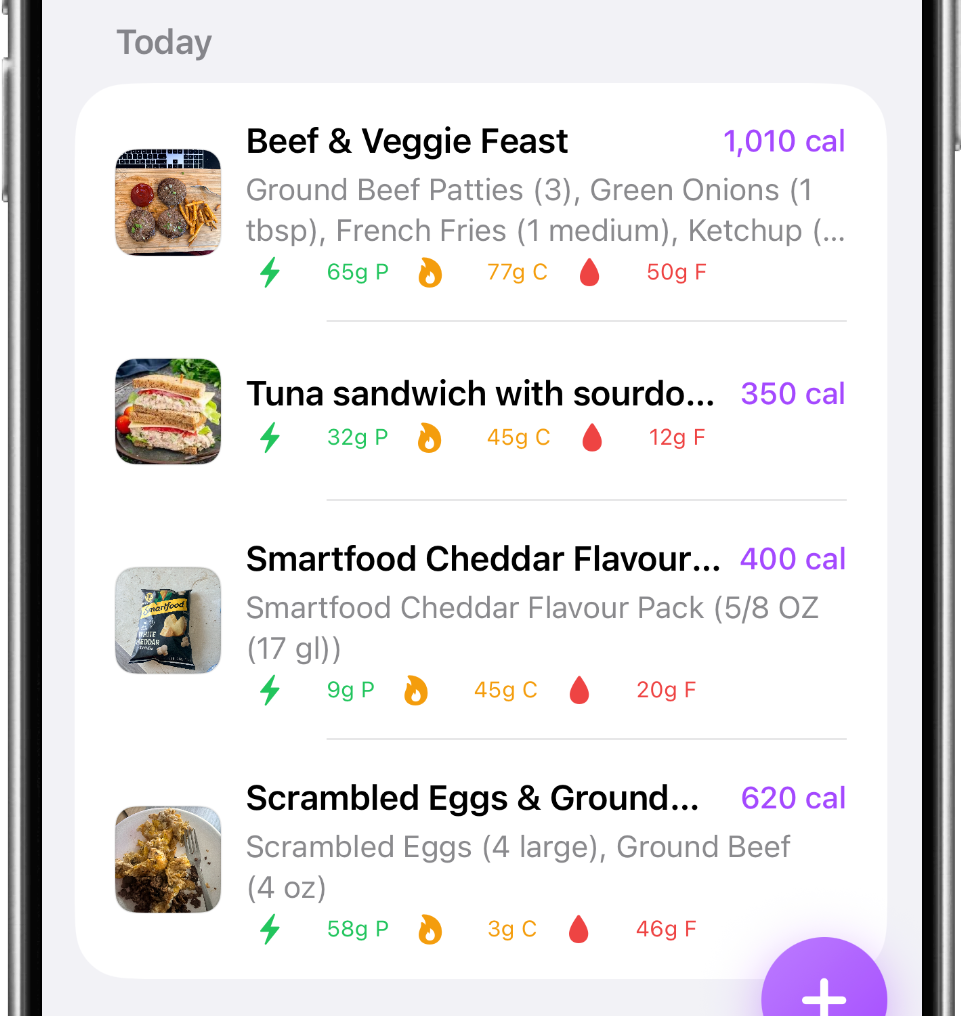
Below that, meals are grouped into Today and Earlier.
Every meal shows its photo, its name, the exact items and portions inside it, and its macros — P (protein), C (carbs), and F (fat).
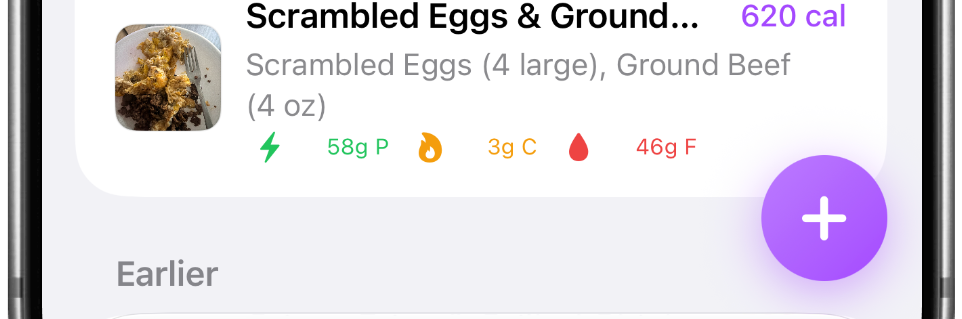
Tap the floating + button and choose:
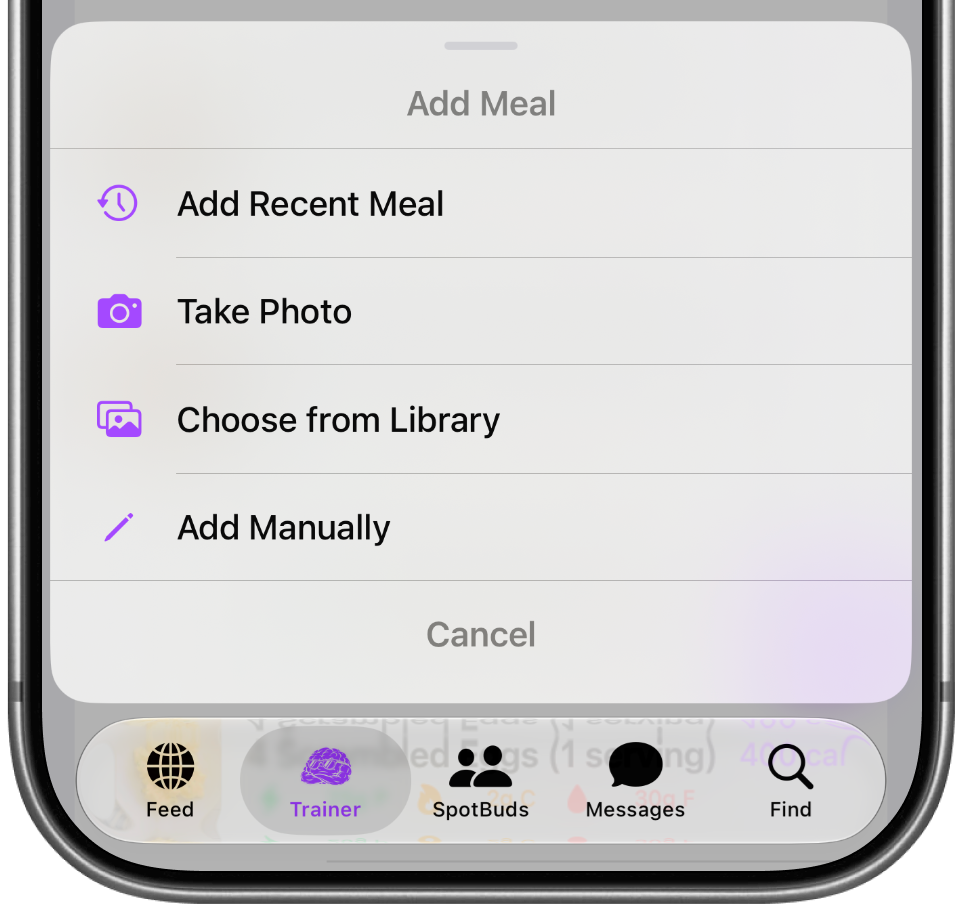
- Take Photo — snap your plate
- Choose from Library — use a photo you already took
- Add Manually — type it in yourself
- Add Recent Meal — re-log something you eat often in one tap