

Messages
The Messages inbox
Everything in one inbox
Talk to your gym people, and your trainer, in one place
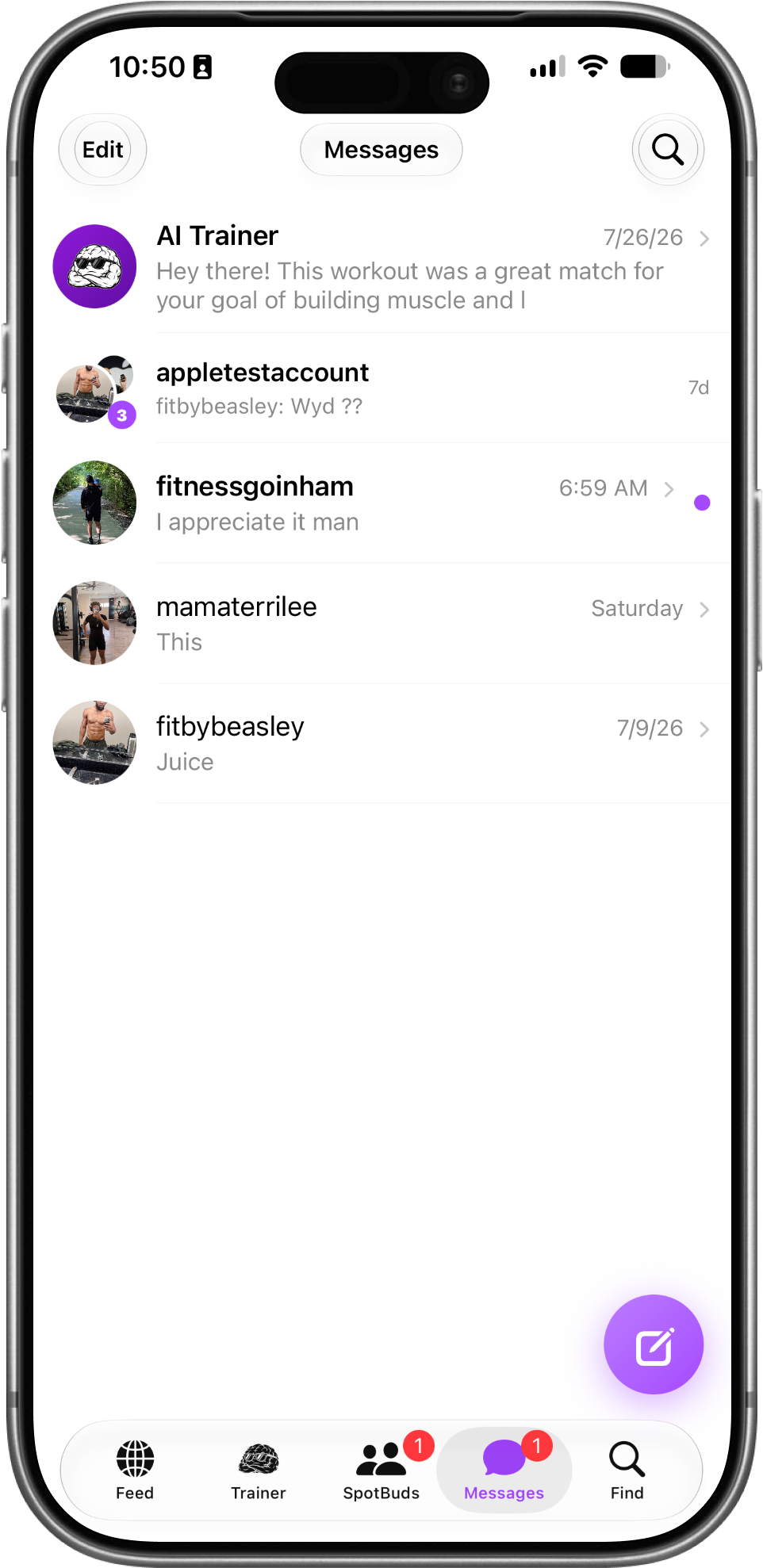
Your Messages tab holds every conversation you have in SpotBud: your AI Trainer, your one-on-one chats, and your group chats,all in one list, newest first.
Each row shows:
- The person's profile photo and username
- A preview of the last message (in group chats it shows who said it, like "fitbybeasley: Wyd ??")
- When it arrived — a time for today, a day name for this week, or the date
- A purple dot on the right when there's something new you haven't read
- A purple number badge on the photo showing how many unread messages are waiting
The Messages tab icon also carries a red badge with your total unread count, so you know without opening it.
AI Trainer at the top
Your trainer lives in your inbox
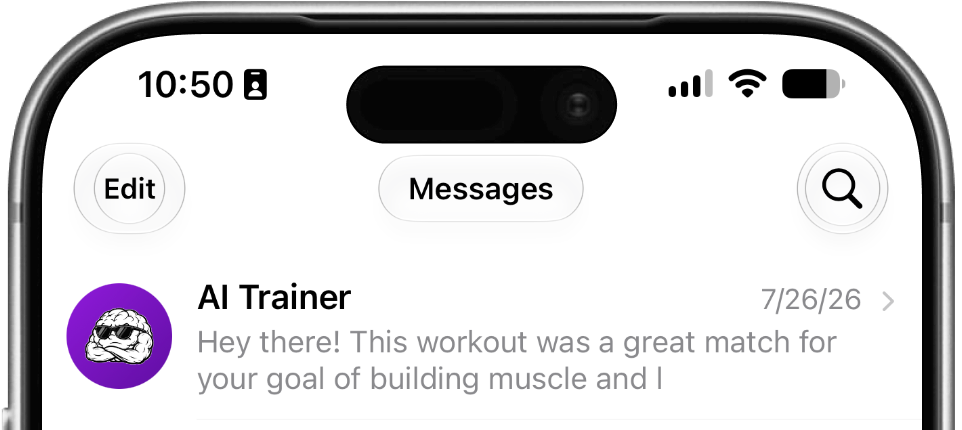
AI Trainer always sits at the top of your list. It's a real conversation it messages you on its own after workouts, after weigh-ins, when a lift stalls, and every Sunday to check in on how you're feeling.
Tap it any time to ask anything about your training, food, or goals.
The purple compose button

Start a new conversation
Tap the floating purple compose button to open New Message. From there you can:
- Search for anyone by name or @username
- Pick someone from RECENT to jump straight into a chat
- Tap New Group Chat to start a group
Group Chat
Get the whole crew in one thread
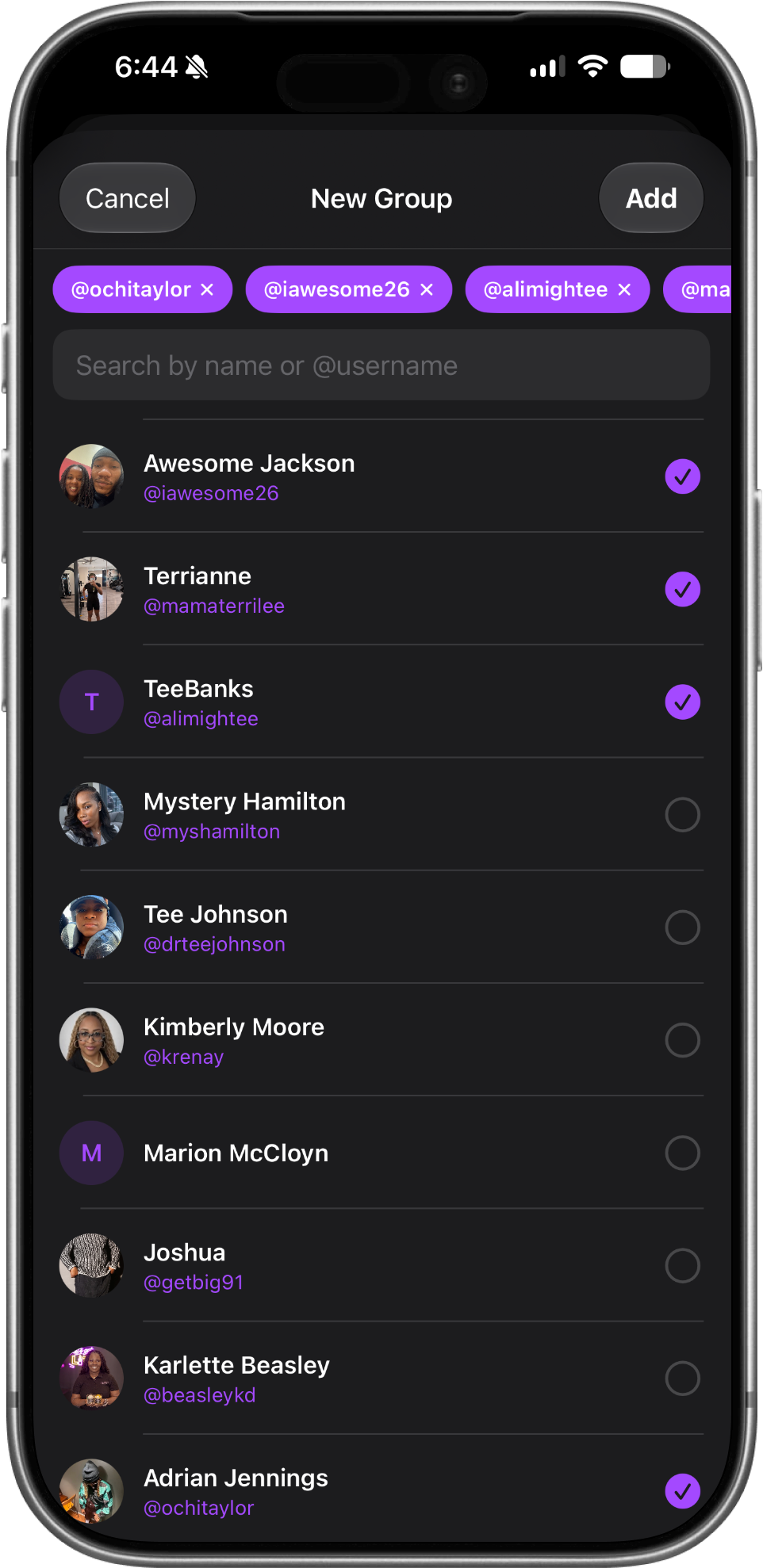
Choose New Group Chat, tap Add next to everyone you want, then Done. You can also turn an existing one-on-one into a group with "Add People — Make it a Group."
Inside a group you'll see the member count at the top (like "4 People"), and you can tap it to see everyone, Add more, Remove people, or Leave Group.
Search
Find any message
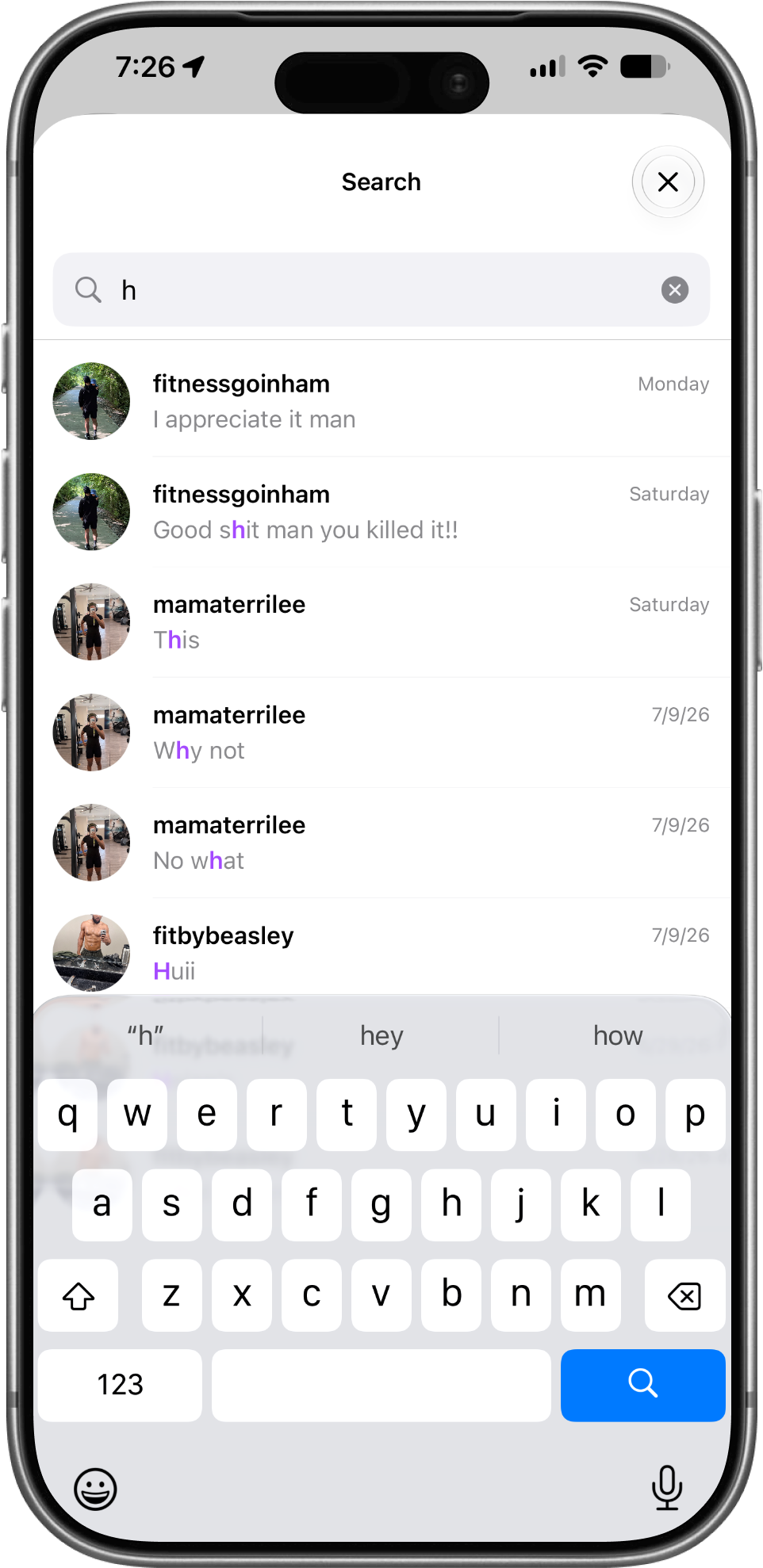
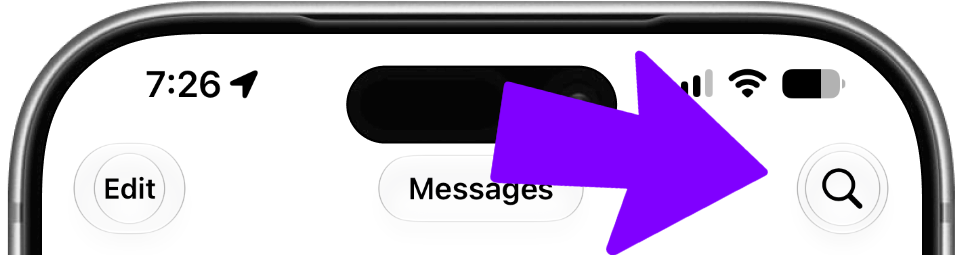
Tap the magnifying glass at the top right and use Search your messages to dig up an old conversation or a specific thing someone said!
No endless scrolling.
Edit / deleting conversations
Clean up your inbox
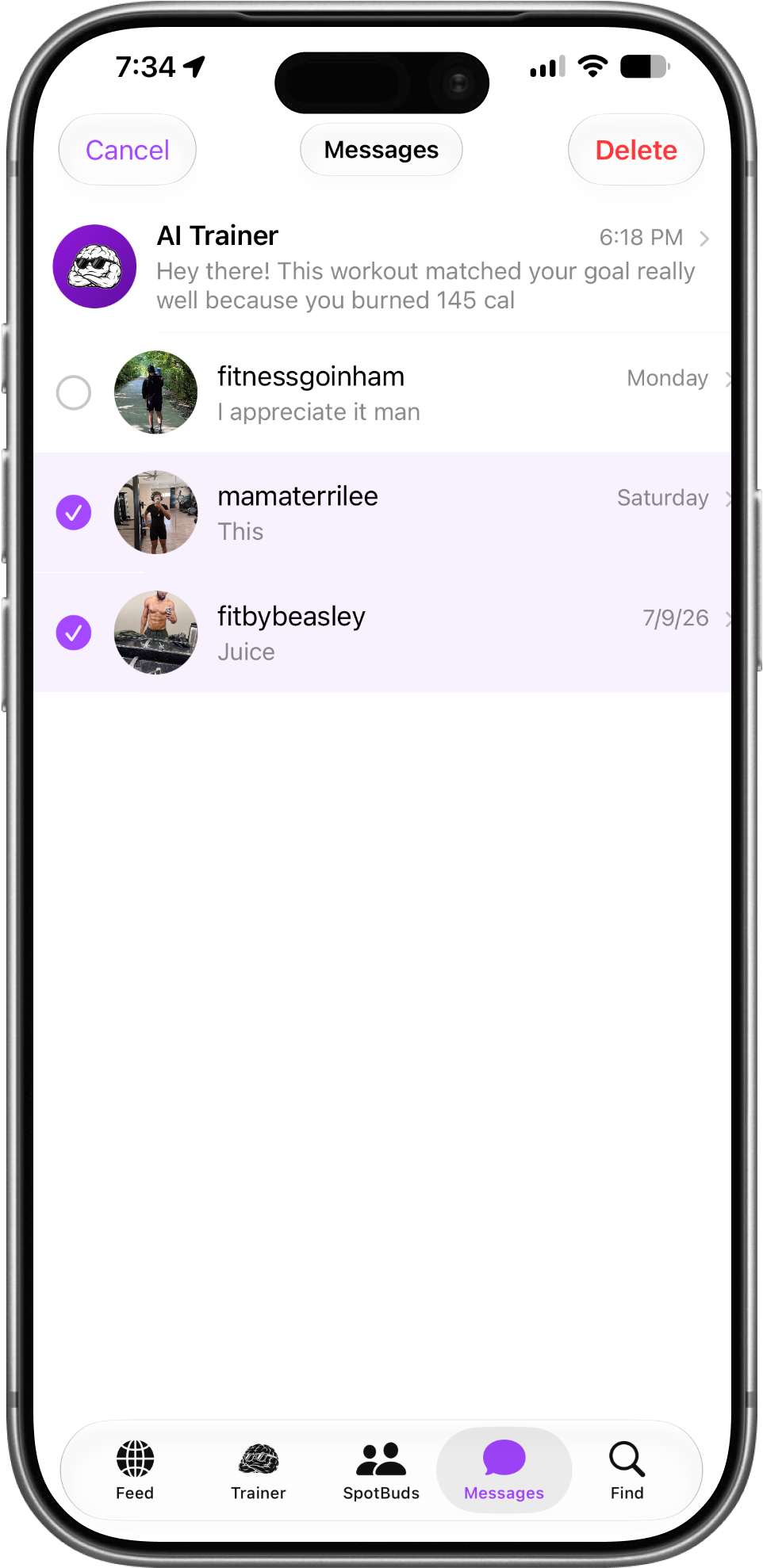
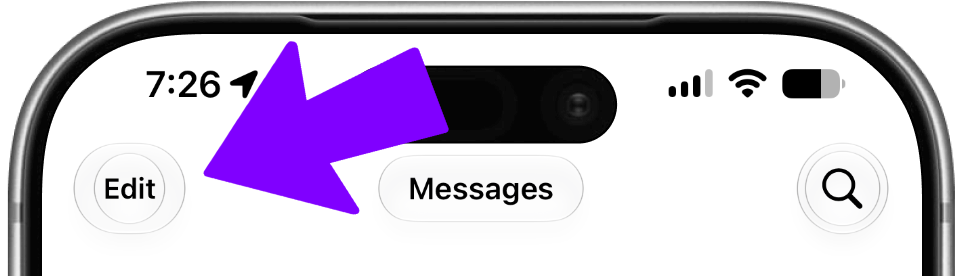
Tap Edit (top left) to select conversations and remove them with Delete for Me.
That clears the thread from your inbox!
it doesn't delete it for the other person.
Sending photos, GIFs and files
Send more than words
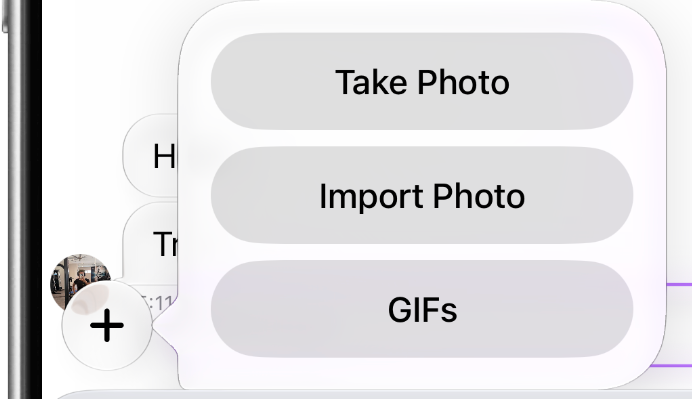
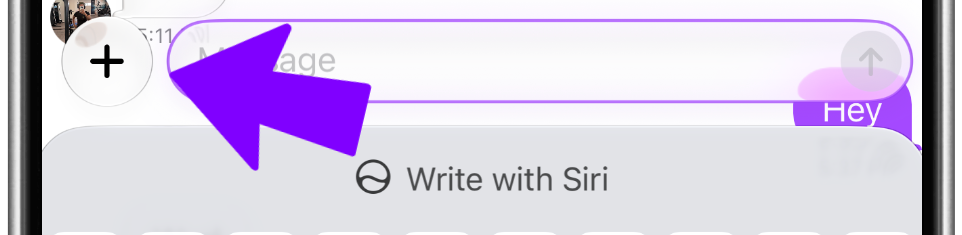
Inside any chat, tap the + next to the message box to send:
- Take Photo — straight from your camera
- Import Photo / Photo — from your library
- GIFs — search GIPHY right inside the app
- File (PDF or image) — in group chats
Photos and GIFs send full-size, and a "Uploading photo…" indicator shows while it's on its way. Tap the Send button to fire it off.
Long-press a message
React, reply, or ask your trainer about it
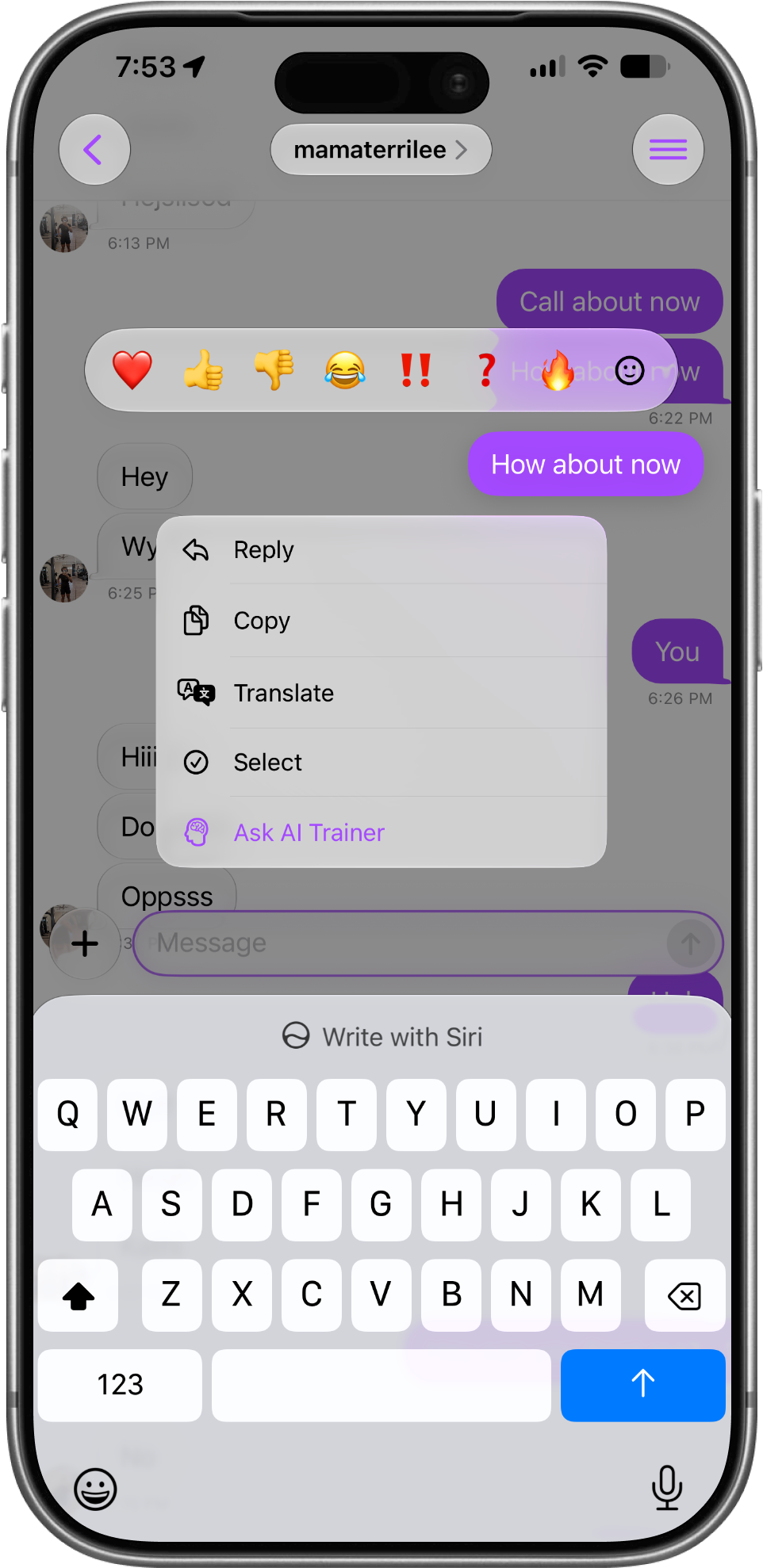
Press and hold any message to open the message menu.
Along the top is a quick reaction row — ❤️ 👍 👎 😂 ‼️ ❓ 🔥 —
plus a smiley button to open the full emoji picker
(with a whole fitness section: 💪 🏋️ 🏃 🏆 🥗 and more).
Underneath you get:
- Reply — quote that exact message in your response
- Copy — copy the text
- Translate — read it in your own language
- Select — pick multiple messages at once
- Ask AI Trainer — send that message straight to your trainer and get an answer about it
Reactions show as small badges under the message, and tapping a badge adds or removes your own.
Shared locations
Share where you're training
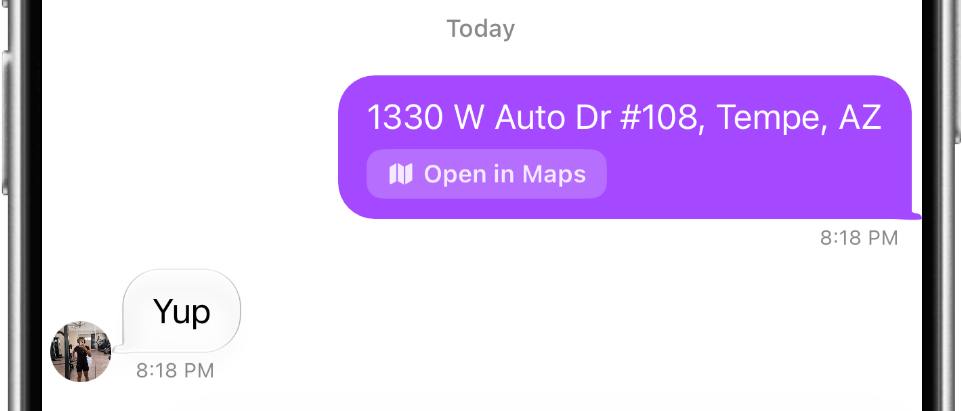
When someone sends a gym, hike, or event, it arrives as a tappable card with Open in Maps so meeting up doesn't turn into ten messages of directions.
Message notifications
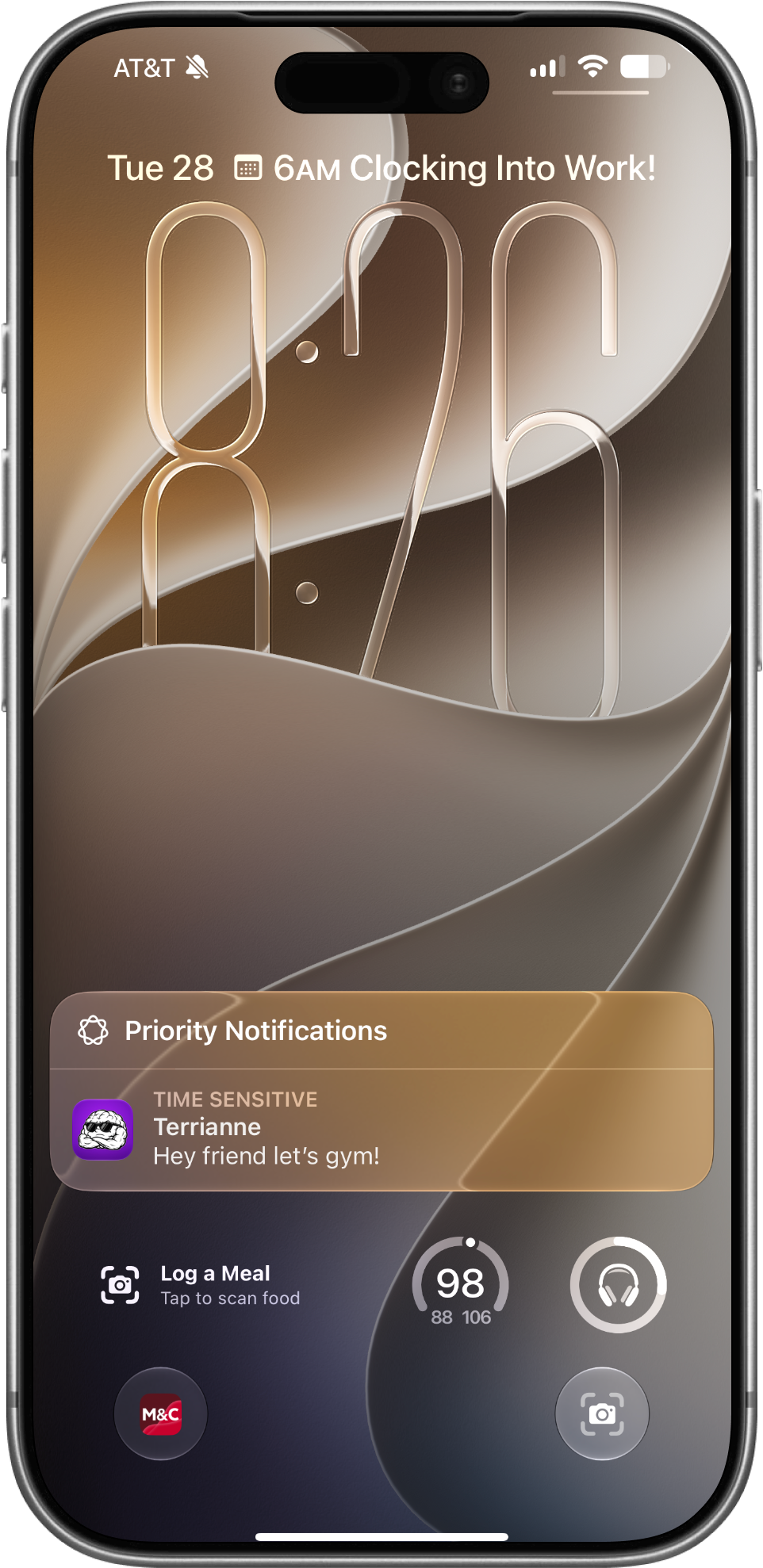
Its own sound, so you know it's a message
Messages have their own notification sound, different from the rest of the app you know it's a person before you look.
Tapping the notification opens straight into that conversation, and group chat pushes show the group name and who sent it.
Free vs. Founding Member
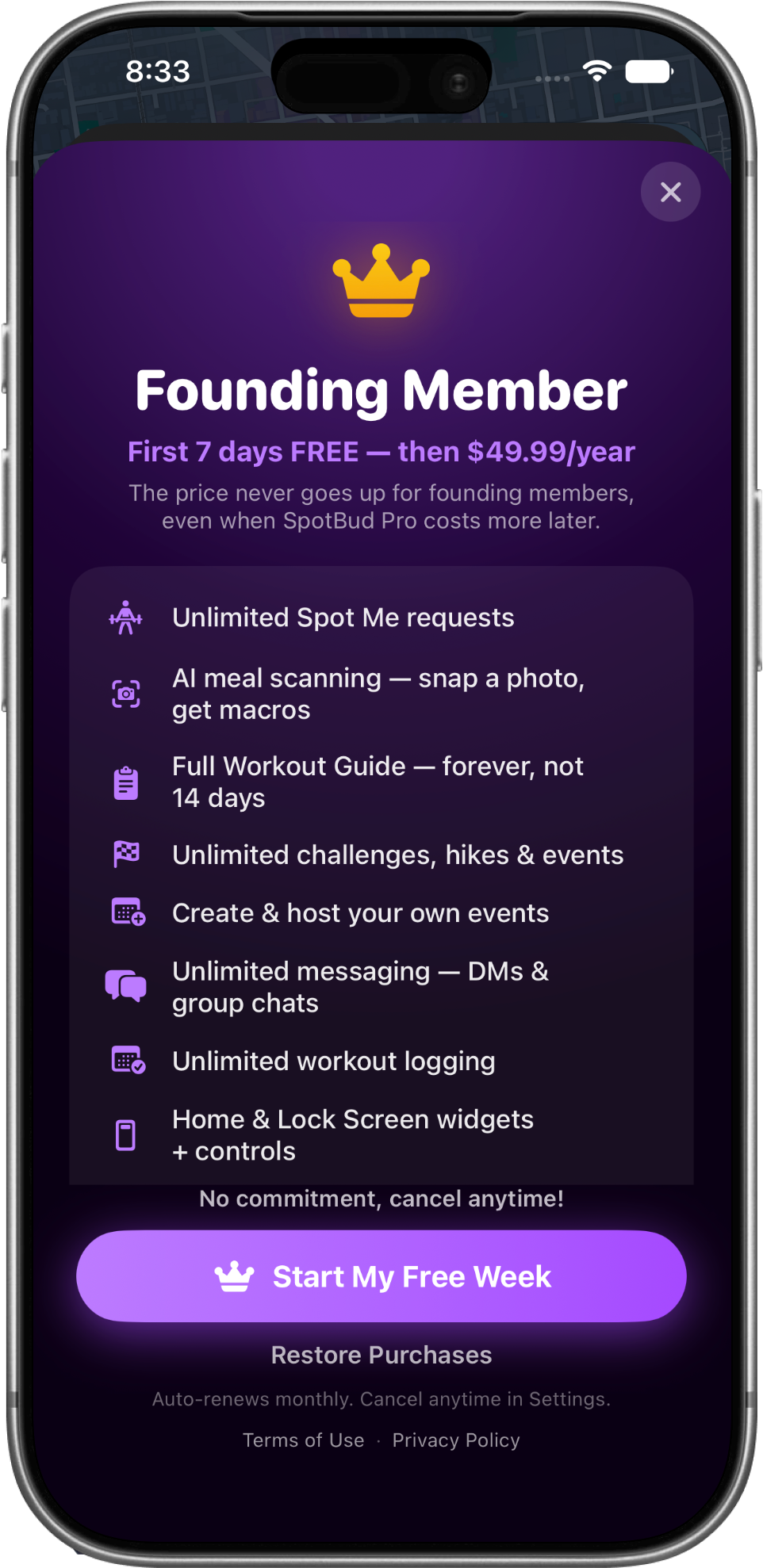
Unlimited messaging for members
Free accounts get 100 messages a day.
- Paid Members get
- Unlimited messaging
- DMs and group chats
- Along with everything else in the membership.